
How to import and export FAQs
Pro featureImport FAQs from a CSV or Excel file with a preview and undo, export them, or back up everything.
Go to Happy FAQs → Tools → Import / Export.
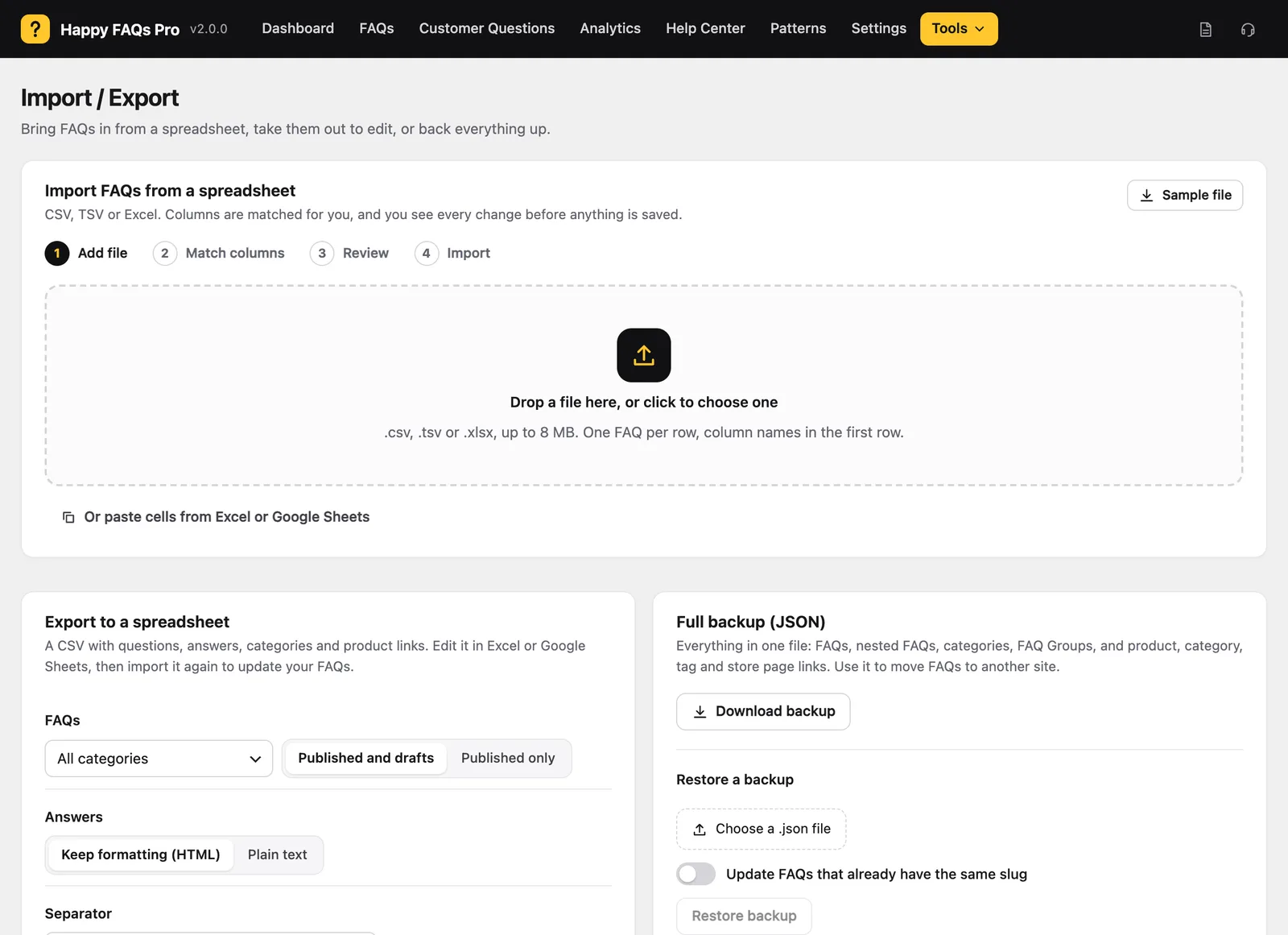
Step 1: Add your file
Drop a CSV, TSV or Excel (.xlsx) file, or paste cells from Excel or Google Sheets. Click Sample file to see the format.
Step 2: Match the columns
Happy FAQs guesses each column: Question, Answer, Status, Categories, products by SKU or ID, and more. Change any match if needed.
Step 3: Review the changes
See how many FAQs will be created, updated, left unchanged or skipped, with plain warnings such as an unknown SKU.
Step 4: Import
Click Import. Large files run in batches with a progress bar.
Export and backup
- Export gives you a CSV of all FAQs or one category to edit and import again.
- Download backup saves everything as JSON: FAQs, categories, groups and product links.
Frequently asked questions
Can I undo an import?
Yes. Undo removes what an import created and restores what it changed.
Can I assign products in the spreadsheet?
Yes. Add a column with product SKUs or IDs, and match it to Products when you import.
Still stuck? We’re happy to help.
Contact support