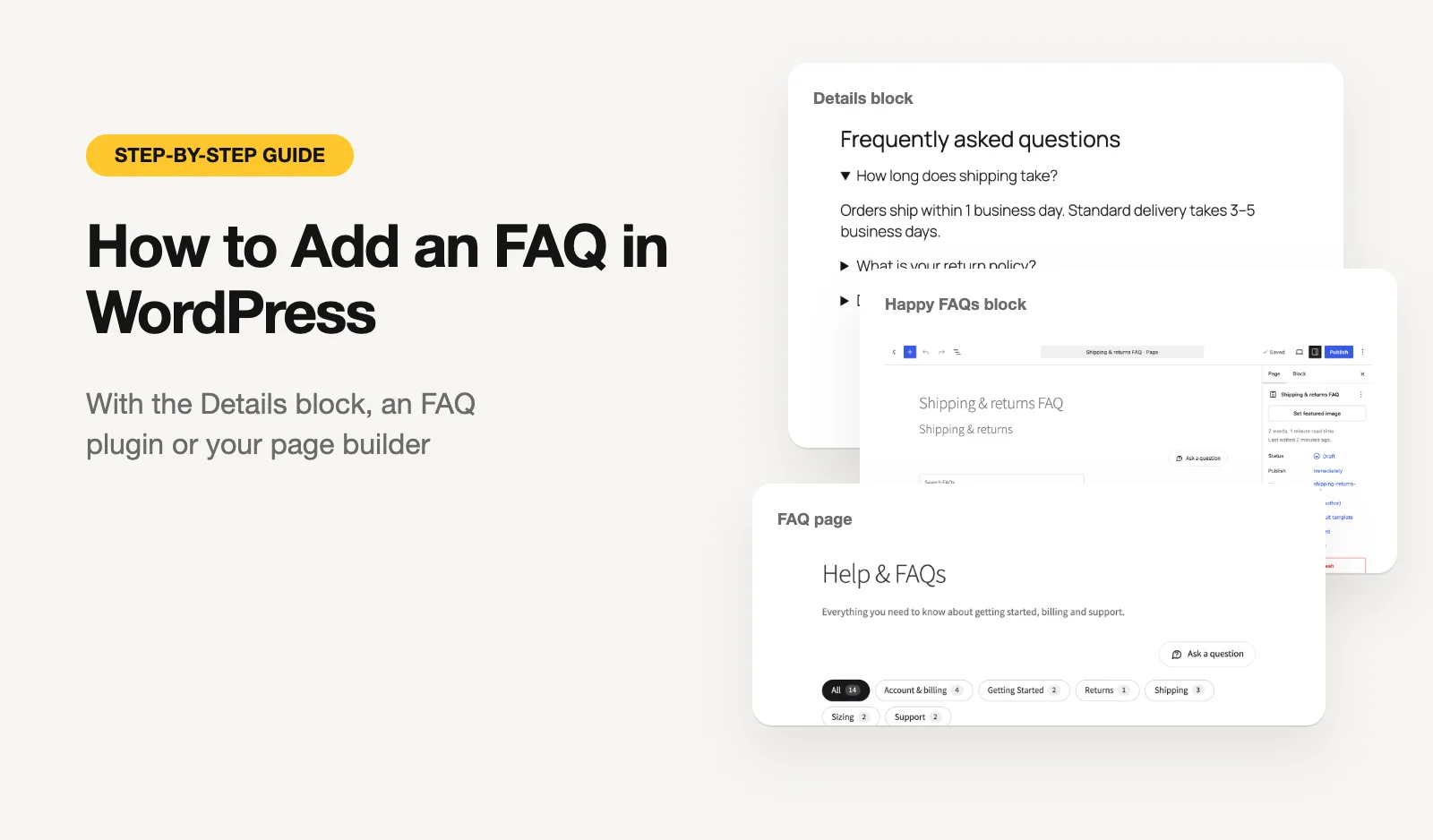
There are three ways to add an FAQ in WordPress. The built-in Details block needs no plugin and suits a few questions on one page. A free FAQ plugin such as Happy FAQs keeps every answer in one place, adds FAQ schema and can build a whole FAQ page for you. And if you design with Elementor or Divi, you can add the FAQ right inside your builder.
This guide shows all three, step by step, then how to add FAQ schema and write questions people actually read. We make Happy FAQs, so that's the plugin we use in the examples. The steps are similar in most FAQ plugins.
Which way should you use?
| Method | Best for | FAQ schema | Reuse answers |
|---|---|---|---|
| Details block | A few questions on one page or post | Only by hand | No |
| FAQ plugin | An FAQ page, help center, or FAQs on many pages and products | Automatic | Yes |
| Elementor or Divi | Pages you already build in a page builder | With an FAQ plugin’s widget | With an FAQ plugin’s widget |
Method 1: Add an FAQ with the Details block (no plugin)
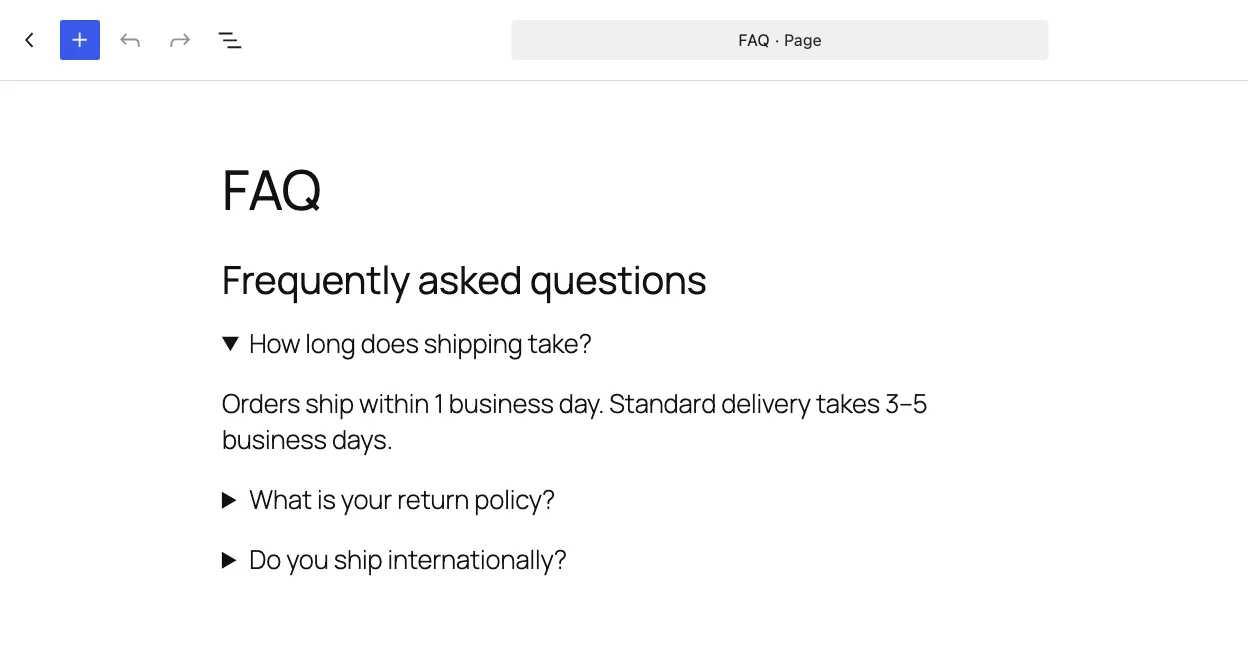
Since WordPress 6.3, the block editor has a Details block: a line of text that opens to show more. One Details block per question gives you a simple FAQ accordion.
- Open the page or post in the block editor.
- Add a heading such as “Frequently asked questions”. It tells readers, and search engines, what the section is.
- Add a Details block. Click +, search for “Details” and add it.
- Type the question in the first line, then press Enter or click below it and type the answer.
- Repeat for each question, then save or publish.
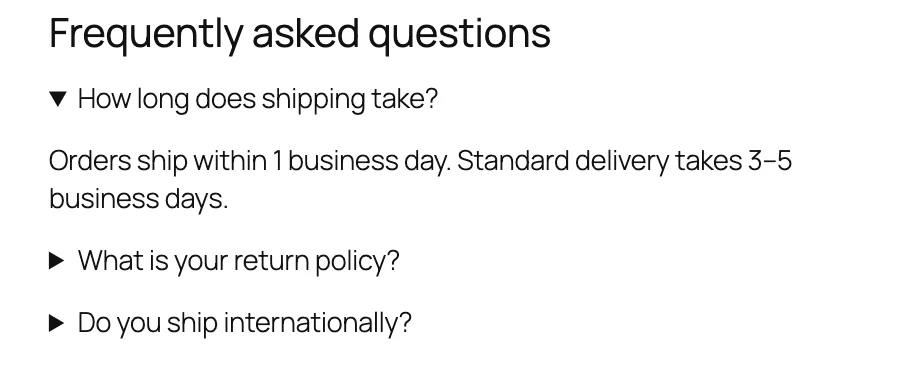
On the page, each question opens and closes when clicked. It uses the browser’s own <details> element, so it works with the keyboard and needs no JavaScript.
Good to know: the Details block adds no FAQ schema; we checked the page source. Each FAQ also lives only on that one page, so if your return policy is answered on five pages, you edit it five times when it changes. For a handful of questions that’s fine. Beyond that, a plugin saves time.
Method 2: Add an FAQ with a free FAQ plugin
An FAQ plugin stores your questions in one library. You write each answer once, then show it on any page, post or product, and the plugin adds FAQ schema for you. Here’s how with Happy FAQs, which is free on WordPress.org.
Step 1: Install the plugin
Go to Plugins → Add New, search for “Happy FAQs”, then click Install Now and Activate. A short setup wizard offers starter questions if you’d like a head start.
Step 2: Write your FAQs
Go to Happy FAQs → FAQs → Add New. The title is the question and the editor below it is the answer, so you can use links, lists and images. Pick a category such as Shipping or Returns, then publish.
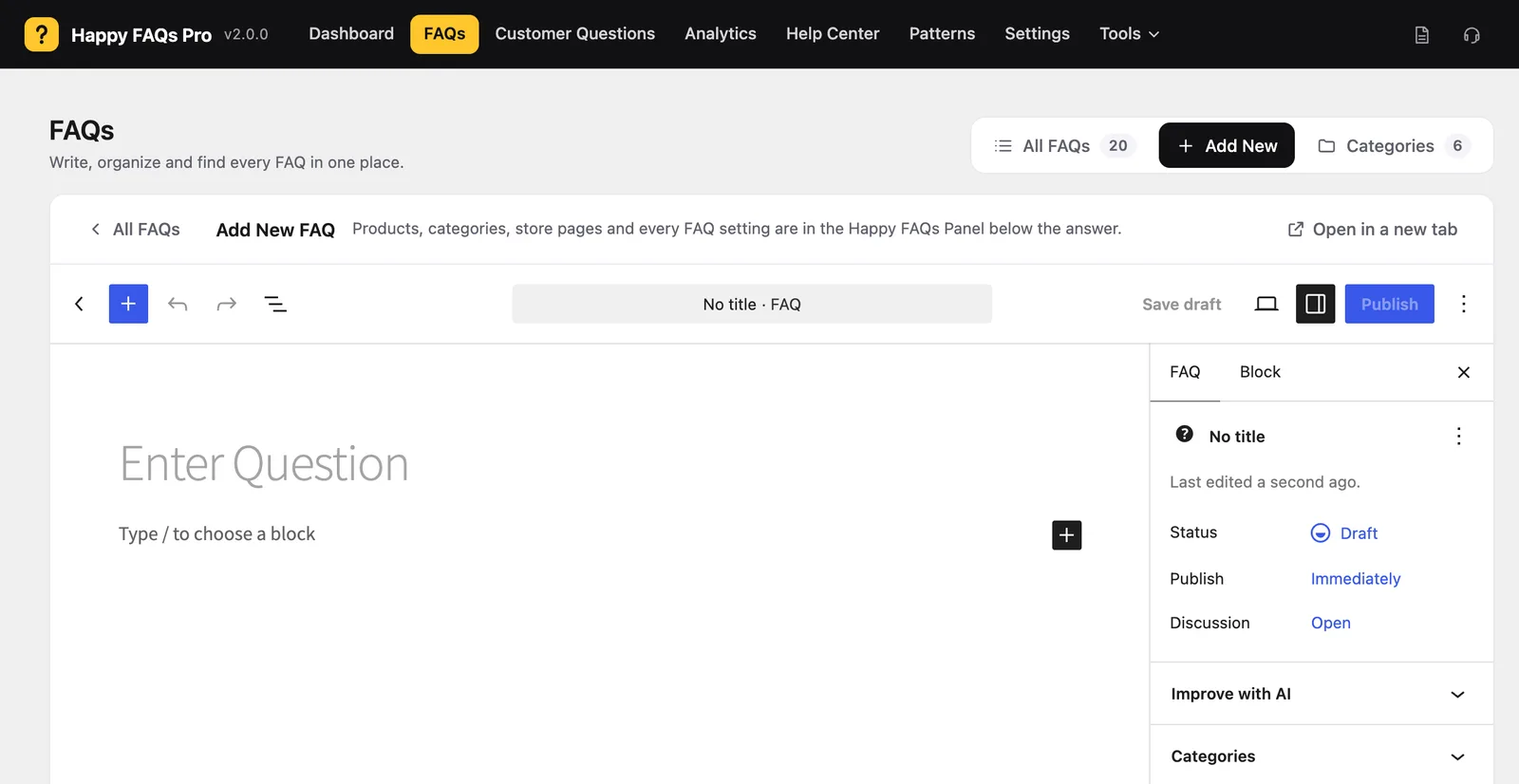
Short on time? The free AI FAQ generator drafts questions and answers from a page, a product or a topic for you to edit. On WordPress 7.0+ it uses WordPress’s own AI connection, with no API key.
Step 3: Add the FAQs to a page or post
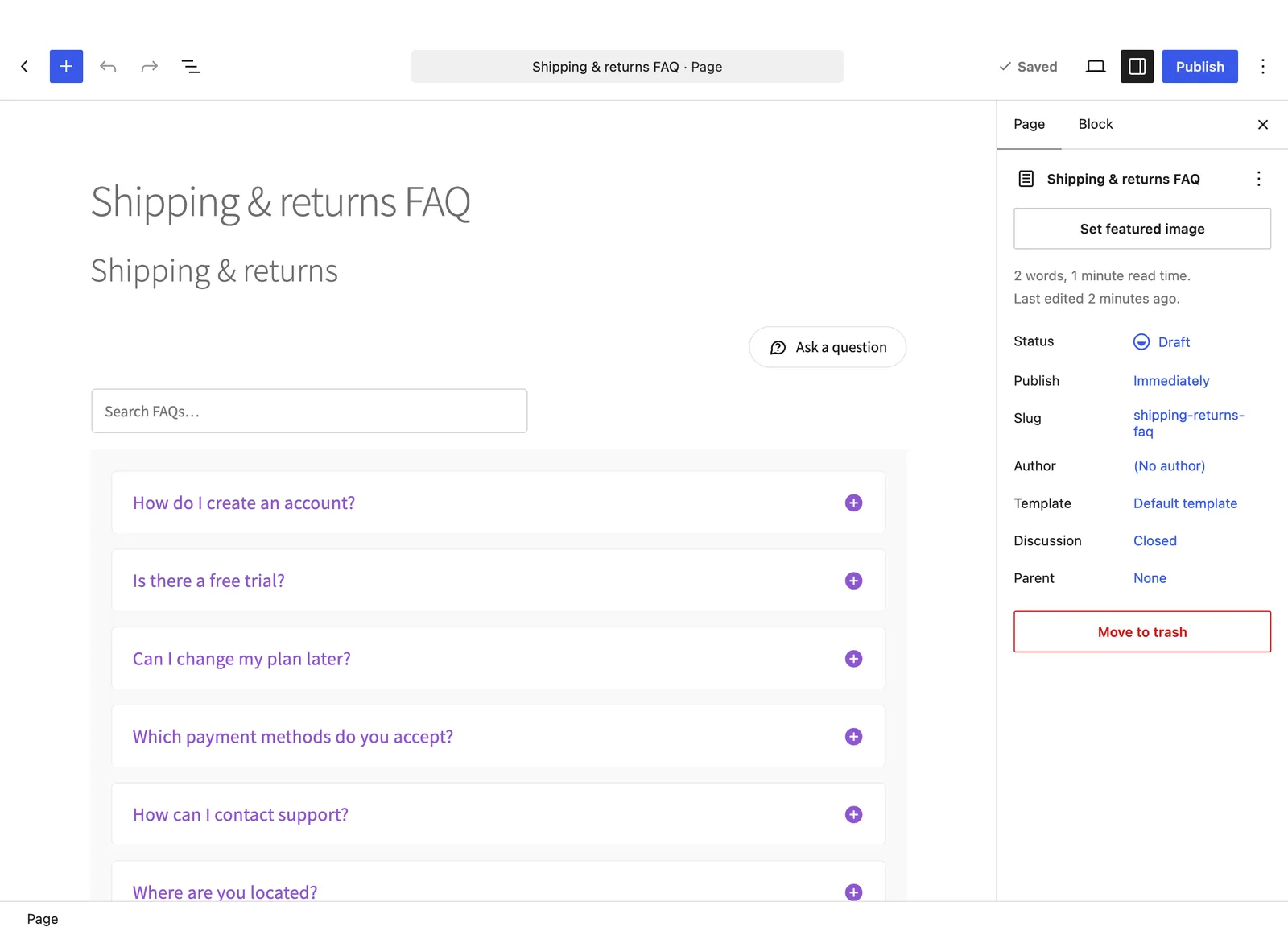
Edit the page, click + and search for “Happy”. Add Happy Prebuilt FAQs to show FAQs from your library (all of them, one category, or ones you pick), or Happy Custom FAQs to type questions just for this page. Set the layout and colors in the block settings, then save.
Not using the block editor? The shortcode [ffw_template] shows all FAQs, and [ffw_template faq_cat="32"] shows one category. Every option is in the shortcode guide.
Step 4 (optional): Make a full FAQ page or help center
For a dedicated FAQ page, create an empty page called “FAQ”, then pick it under Happy FAQs → Settings → General → FAQ page. Every published FAQ appears on it, and you can turn on category tabs.
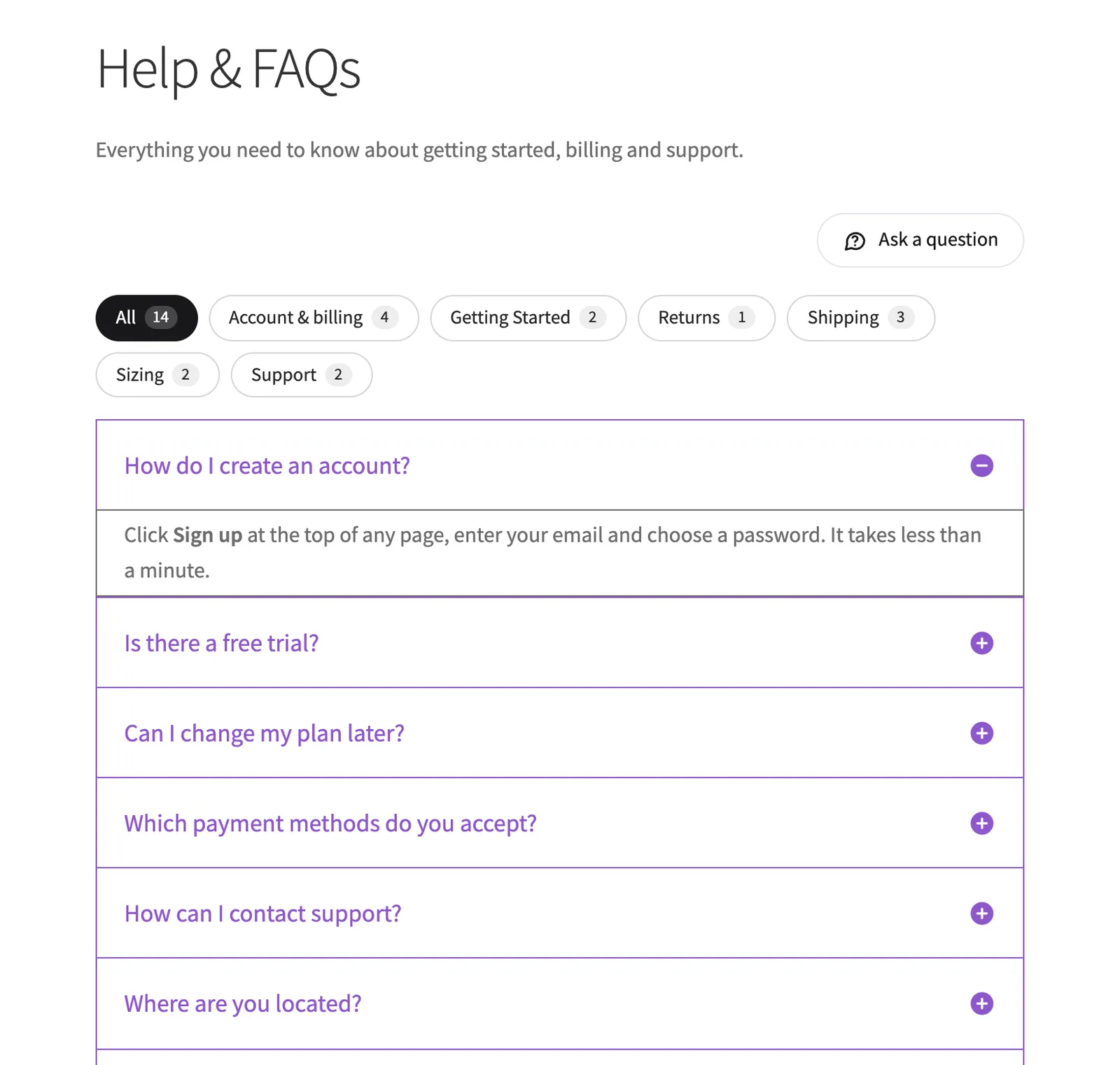
For more structure, Happy FAQs → Help Center builds a support page in one click: a search box, the most asked questions and every topic. It updates as you add FAQs. See FAQ page and help center for the options, or pick one of 21 ready-made FAQ sections under Happy FAQs → Patterns.
Method 3: Add an FAQ in Elementor or Divi
If you build pages with Elementor or Divi, add the FAQ where you design everything else.
- Elementor: its own Accordion widget is enough for a one-off FAQ. For FAQs from your library with FAQ schema, search the widgets panel for “Happy” and drag in Happy Prebuilt FAQs or Happy Custom FAQs.
- Divi 4 and Divi 5: add a module and search for “Happy” to find the same two modules.
- Other builders: paste the
[ffw_template]shortcode into the builder’s shortcode or text element.
The page builder guide walks through each one.
Adding FAQs to WooCommerce products
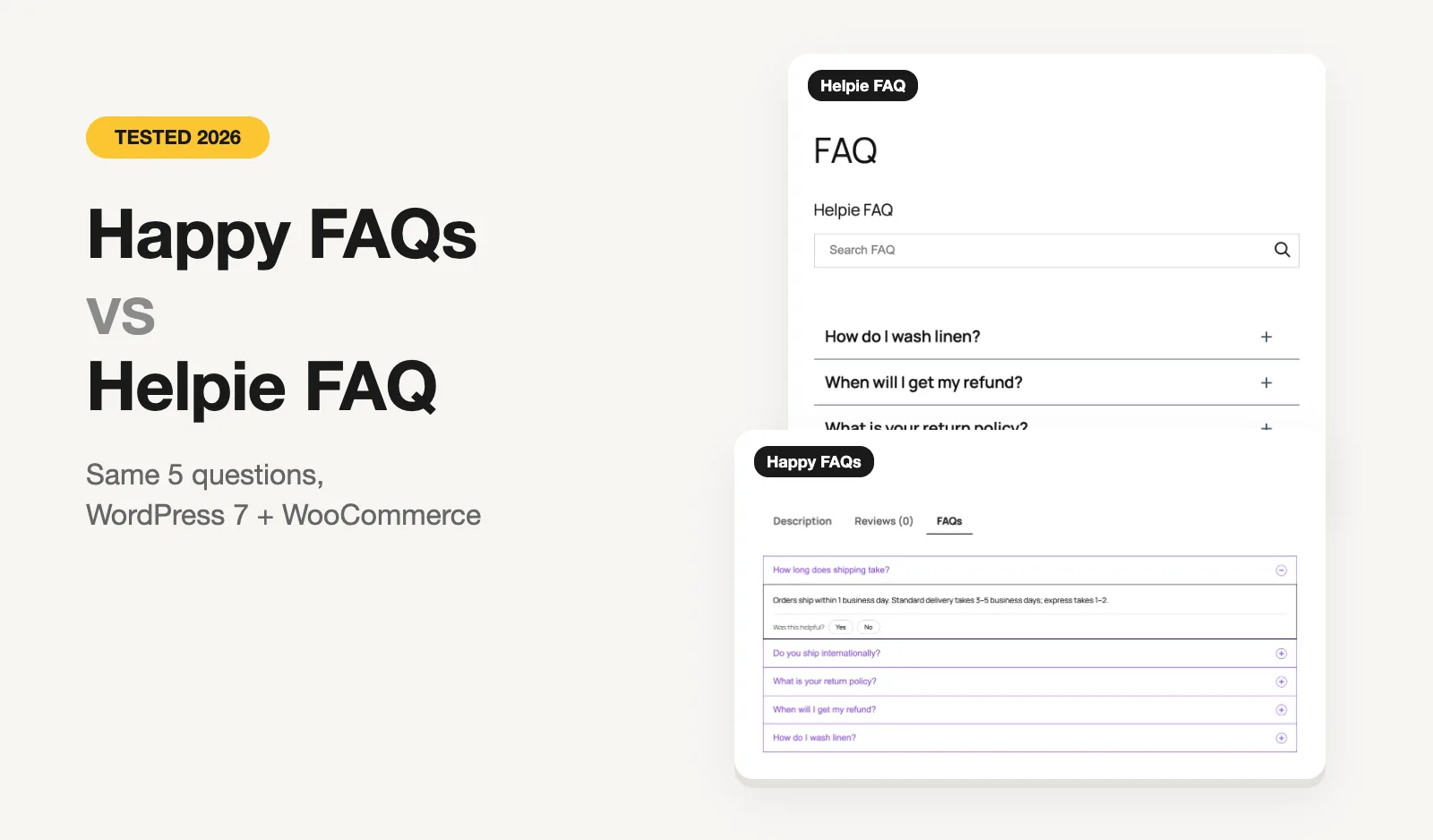
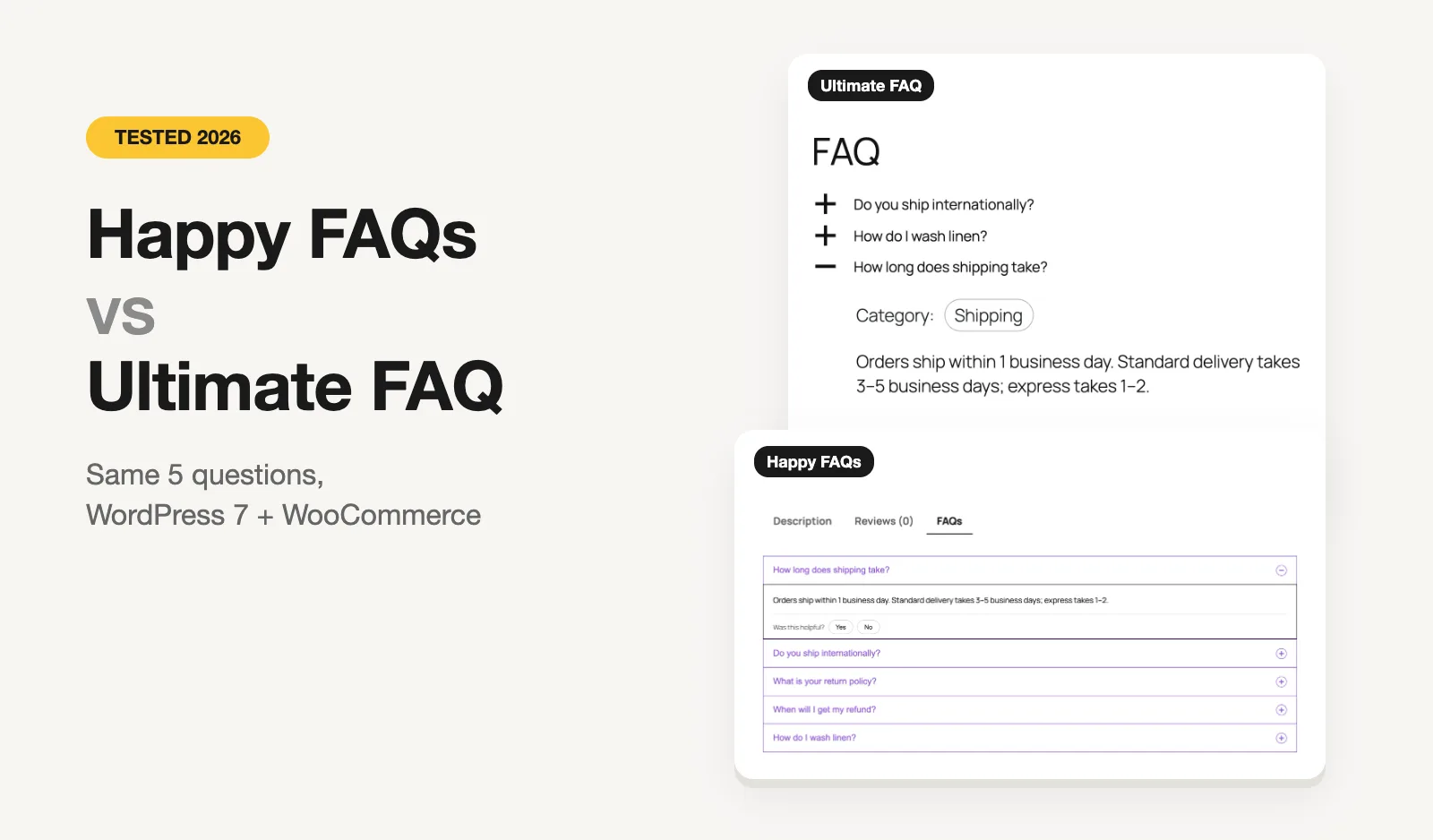
Selling with WooCommerce? Product pages are where shoppers have the most questions. Happy FAQs adds an FAQs tab next to Description and Reviews, and you can assign each FAQ to products, whole product categories or product tags, so new products pick up the right answers on their own. The WooCommerce product FAQs guide shows how, and we compared the options in the best WooCommerce product FAQ plugins.
How to add FAQ schema
FAQ schema is structured data that labels each question and its answer, so search engines and AI assistants can read them as clear pairs.
- With a plugin: Happy FAQs adds FAQPage schema automatically on every page and product that shows FAQs, merged into one block with duplicates removed. There’s nothing to set up. More on how it works in automatic FAQ schema.
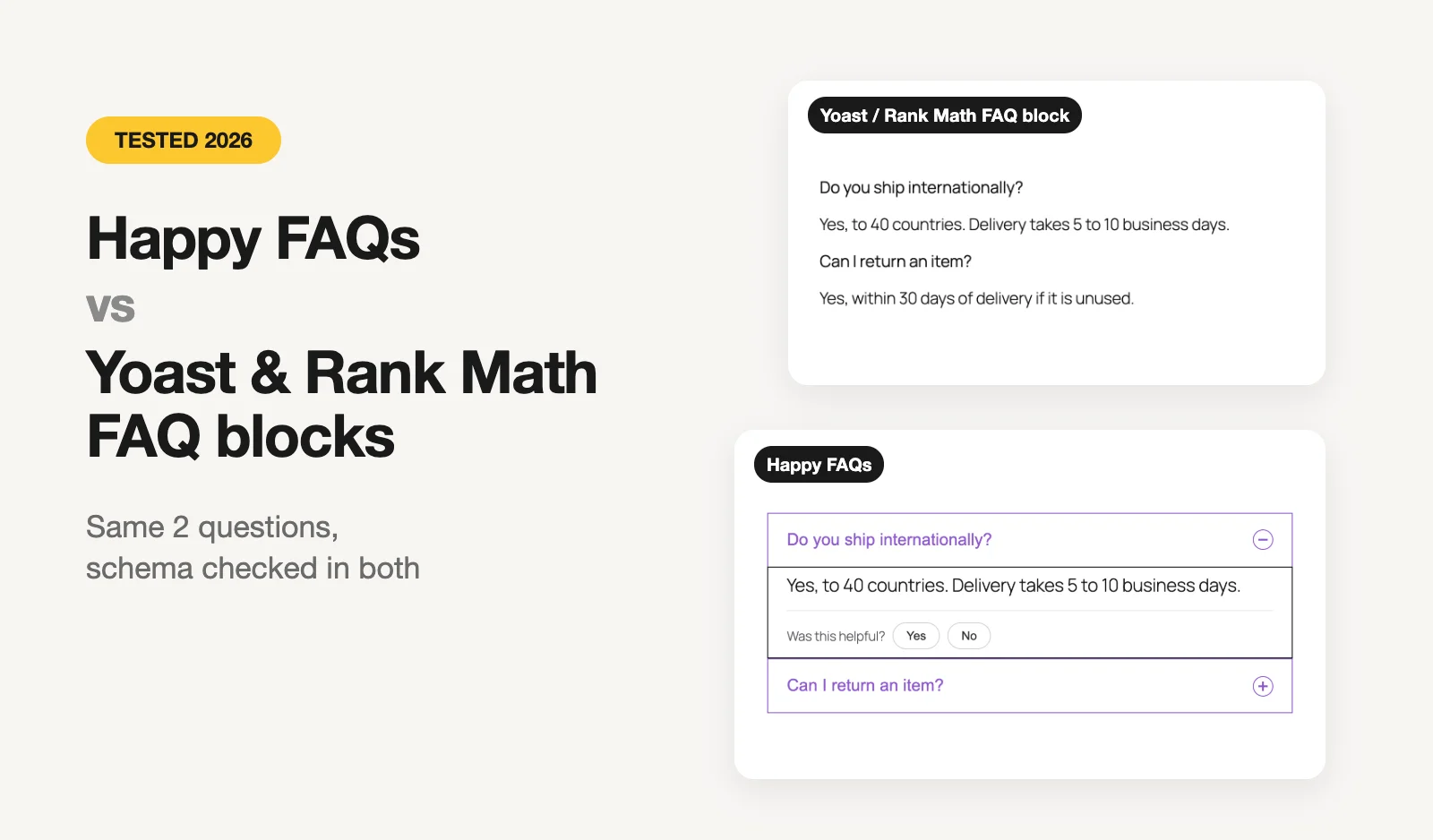
- With your SEO plugin: Yoast SEO and Rank Math each have a free FAQ block that adds FAQPage schema. It shows the questions as a plain list, not an accordion. We compared them in Happy FAQs vs the Yoast and Rank Math FAQ blocks.
- Without a plugin: add a Custom HTML block at the end of the page and paste a FAQPage script like the one below, with your own questions. The text must match what’s visible on the page, and you’ll need to update it whenever an answer changes. You need an administrator account: WordPress removes scripts added by other roles.
<script type="application/ld+json">
{
  "@context": "https://schema.org",
  "@type": "FAQPage",
  "mainEntity": [
    {
      "@type": "Question",
      "name": "How long does shipping take?",
      "acceptedAnswer": {
        "@type": "Answer",
        "text": "Orders ship within 1 business day. Standard delivery takes 3–5 business days."
      }
    }
  ]
}
</script>
To check it, paste the page URL into Google’s Rich Results Test or the Schema.org validator. You should see one FAQPage item listing every question.
Keep your expectations honest: since August 2023, Google shows the expandable FAQ snippet only for a small group of well-known government and health sites. Schema is still worth having, because it makes your answers easy to read and quote, but most sites won’t get the snippet.
Tips for FAQs people actually read
- Use real questions. Look at your support emails, live chat and the searches on your site. Write the question the way a customer would type it.
- Answer first. Put the answer in the first sentence: “Yes, we ship to over 40 countries.” Then add the detail.
- Keep it short. Two or three sentences per answer. Link to a full page when something needs more.
- Group by topic. Shipping, returns, payments, product care. Past about ten questions, add categories or a search box.
- Keep answers in one place. When a policy changes, you want to edit one answer, not hunt through ten pages.
Comparing plugins first? We tested six of them on the same site in the best WordPress FAQ plugins.